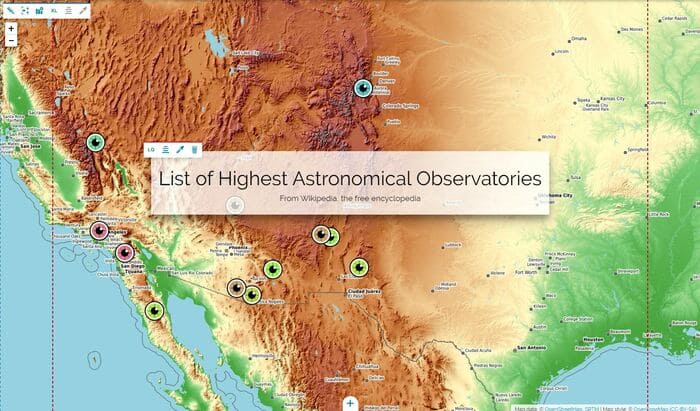
Configure the map
With the Edit map configuration button  the Map Inline Editor opens to give the opportunity to do quick customizations (like basic map settings, layer opacity and something more) to the map (more advanced customizations then, are allowed only through the Advanced Map Editor).
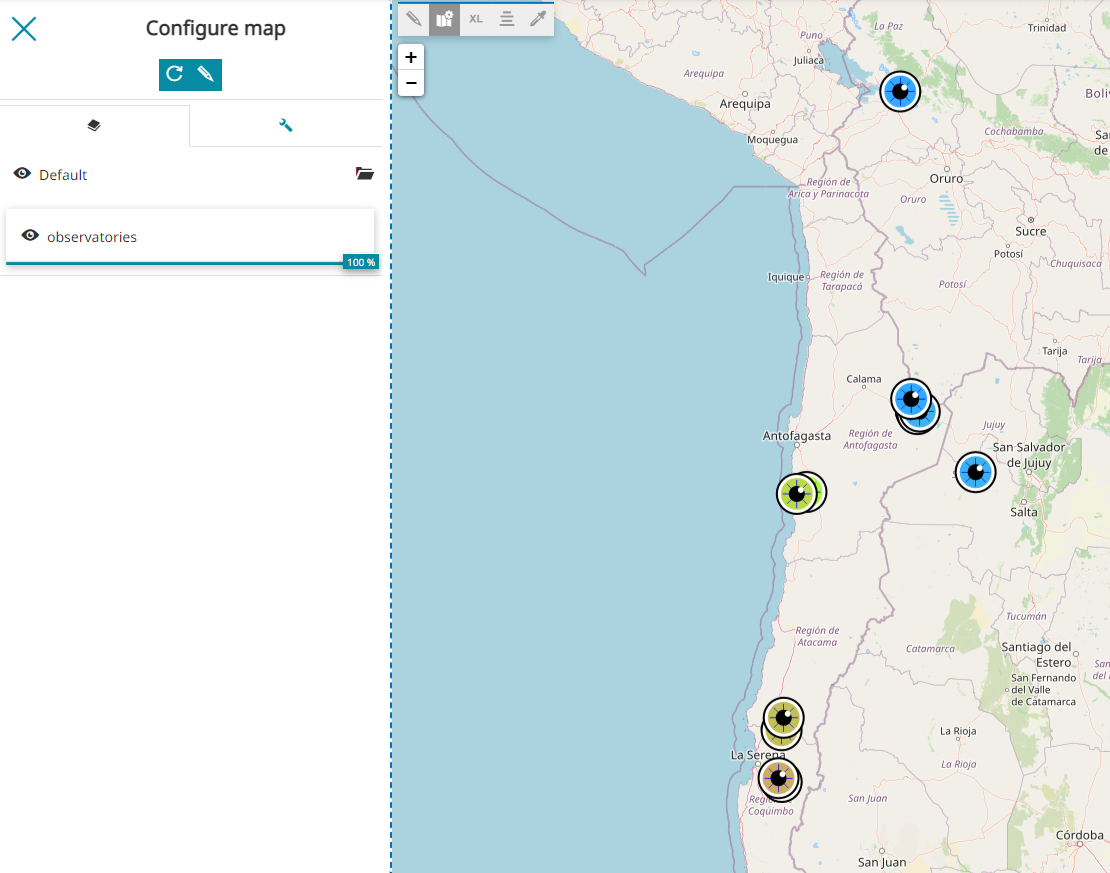
Layers
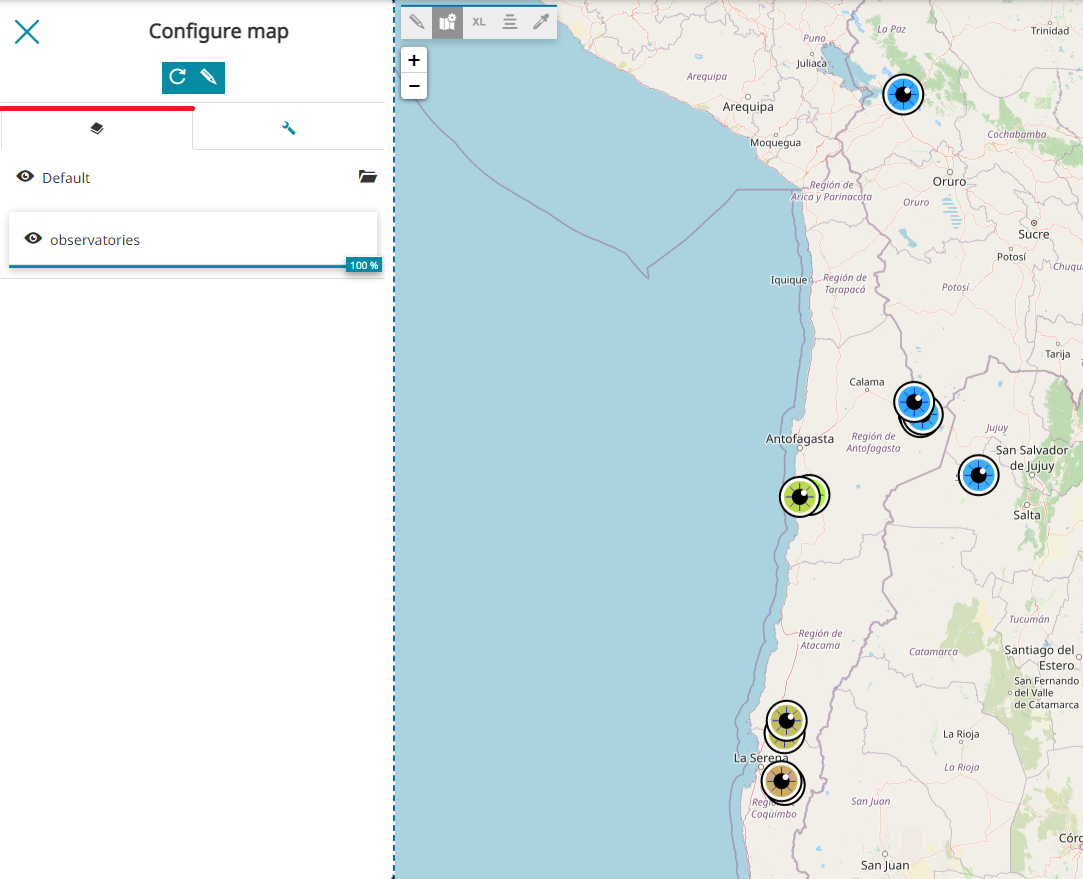
The Map Inline Editor opens with the Layers section available, where it is possible to edit the layers settings (by selecting a layer in the TOC) and the visibility of layers present in the map:
-
Control the layer transparency by scrolling left and right the transparency bar
 .
. -
Enable/disable the layer visibility by using the check box to the left side of the layer leaf

Setting
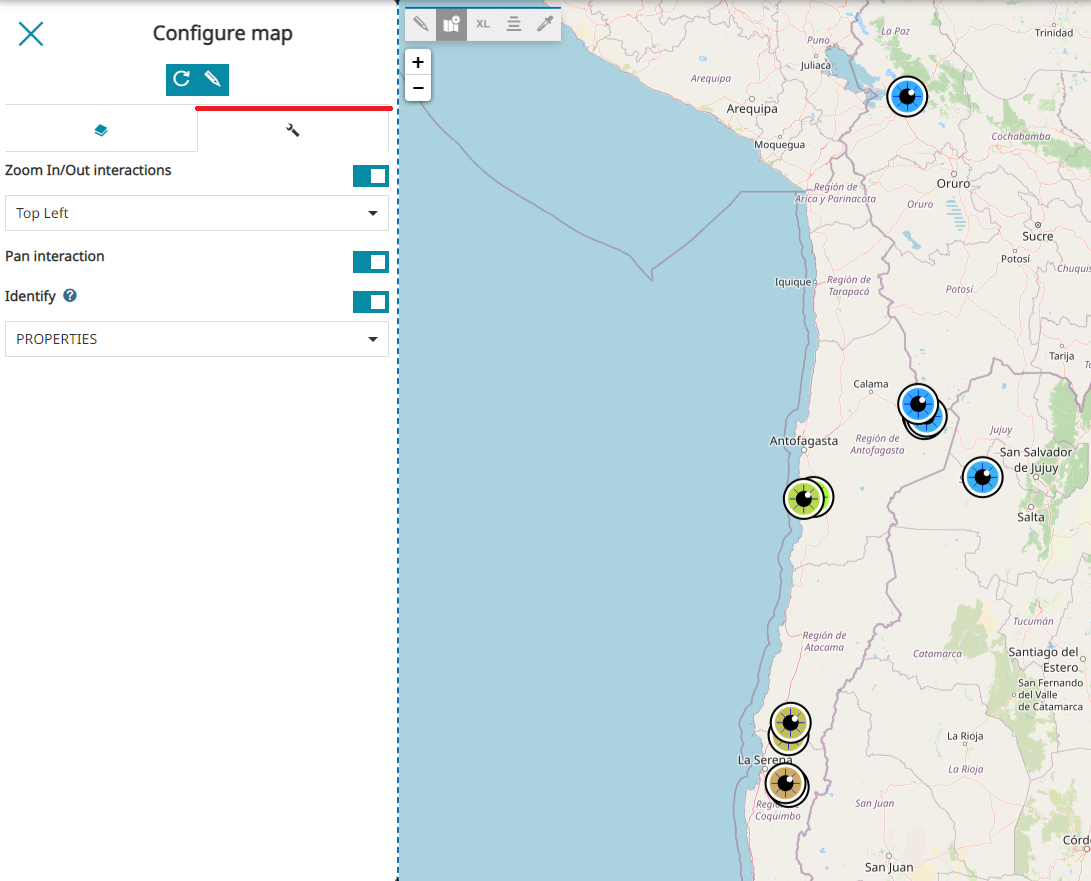
The Setting section allows the user to:
-
Set the map Center by entering the Lat and Lon coordinates
-
Apply the current center coordinates to all other maps in the GeoStory by clicking Apply to other maps
-
Choose a predefined zoom level from the Scale dropdown menu
-
Apply the current Scale to all other maps in the GeoStory by clicking Apply to other maps
-
Enable/disable the Zoom in/out on the map
-
Change the position of the Zoom in/out by choosing one of the options available in the dropdown menu
-
Enable/disable the Pan interaction on the map
-
Enable/disable the Identify on the map. As reported in the Identify tool section, also for map sections in a geostory it is possible to enable the Identify tool in one of the format supported by MapStore (TEXT, HTML or PROPERTIES)
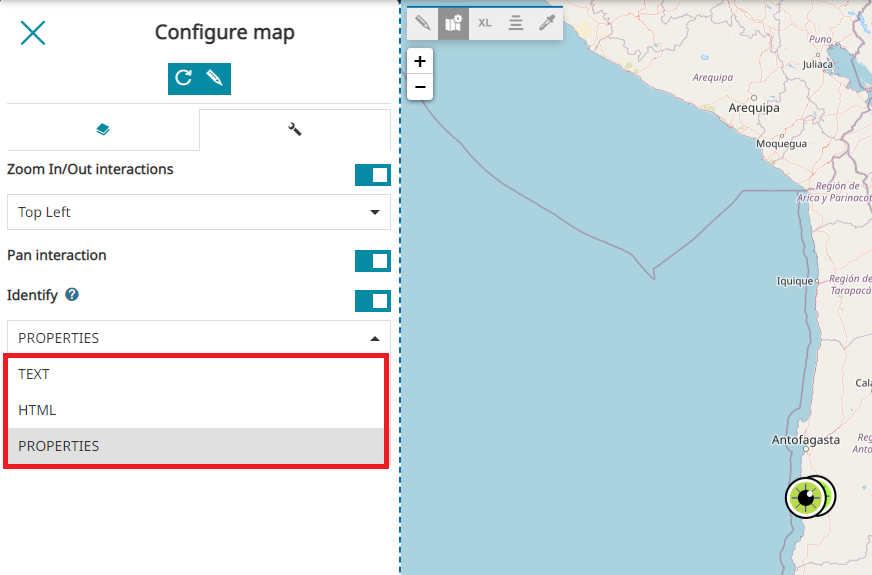
Note
The Identify request is performed as usual when the user clicks on a layer in the map, as follows:
Advanced map editor
Inside the Map Inline Editor Toolbar the Advanced map editor button  is also available to allow advanced customization to the map: clicking on that button, a MapStore viewer opens for this purpose.
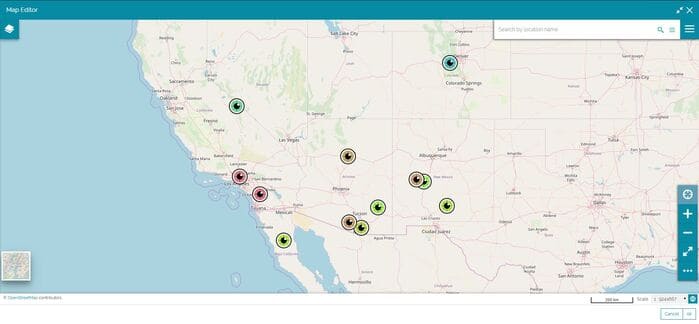
The available tools to modify the map are the following:
-
Adding the Layers by clicking on the
 button from the Side Toolbar as it is explained in the Catalog Services section.
 -
Adding Annotations by clicking on the
 button from the Table of Contents panel as it is explained in the Adding Annotations section.
 -
Import a map or a vectorial file by clicking
 from the Side Toolbar as it is explained in the Import files.
 -
Change Background as it is explained in the Background Selector
-
Edit Layers by clicking on the Layers button
 as it is explained in the Table of Contents
Once the advanced map editing is complete, it is possible click on Apply to see the final result in the story.